Administrator
Administrators configure data connections, user access, and authorization boundaries so business teams can ask questions without handling database credentials.
Start by signing in with the administrator account and change the initial password immediately after first login.
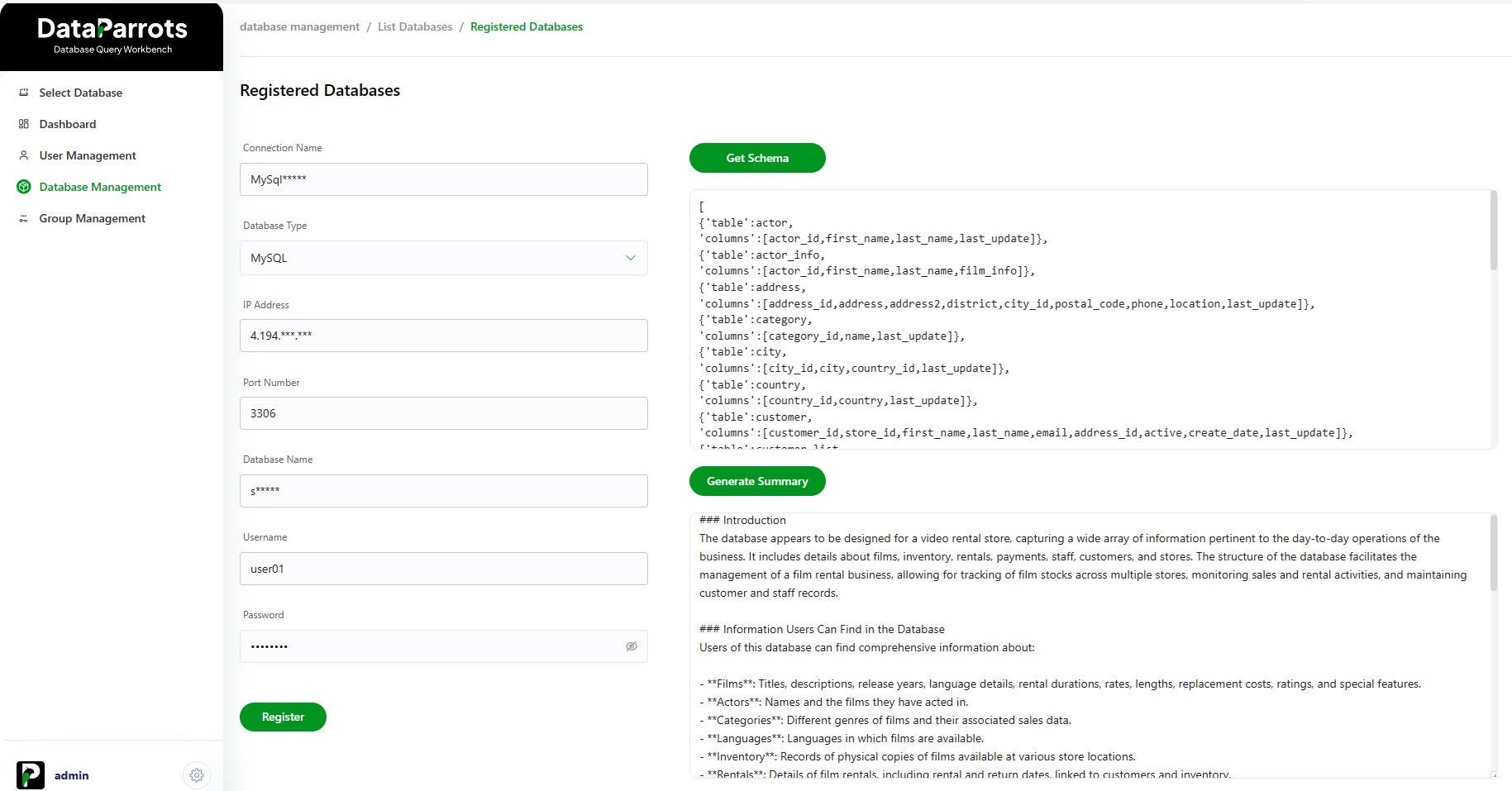
Database Management
Use Database Management to register databases and control connectivity details centrally.
After successful registration, DataParrots retrieves schema information and generates database context summaries.
- Set a connection name and choose database type (MySQL, SQL Server, SQLite, MariaDB, Oracle, PostgreSQL).
- Provide host, port, database name, username, and password.
- Validate connectivity and confirm schema retrieval.
User Management
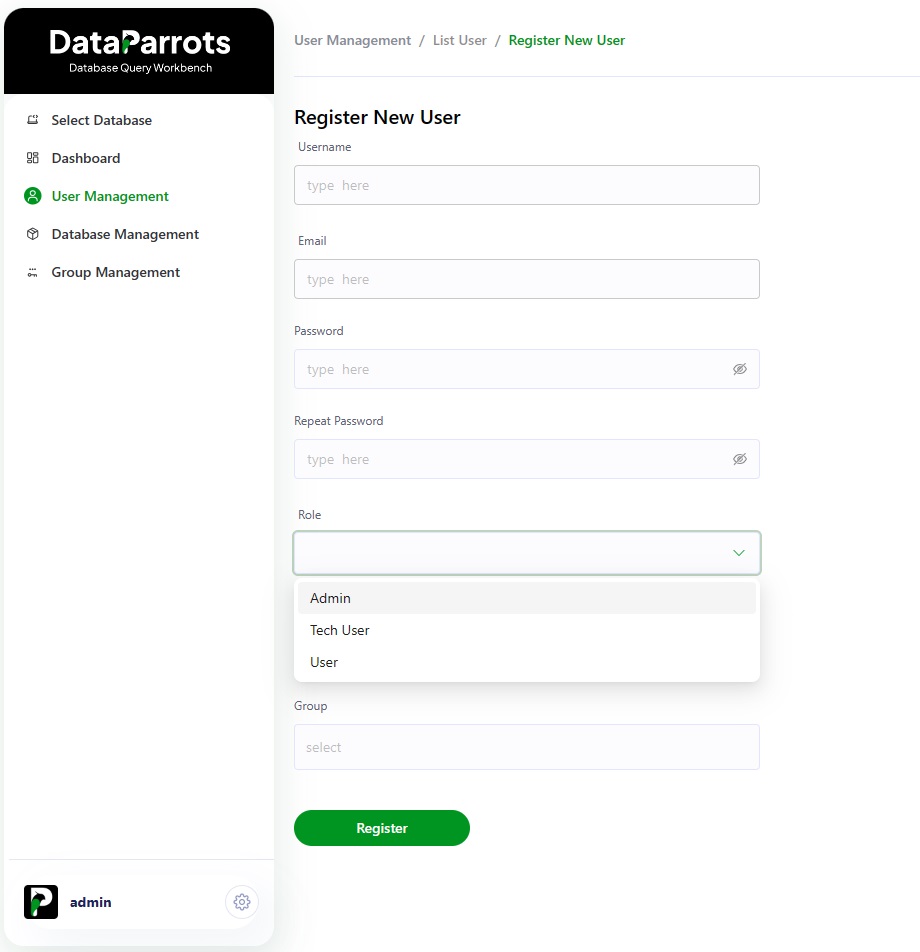
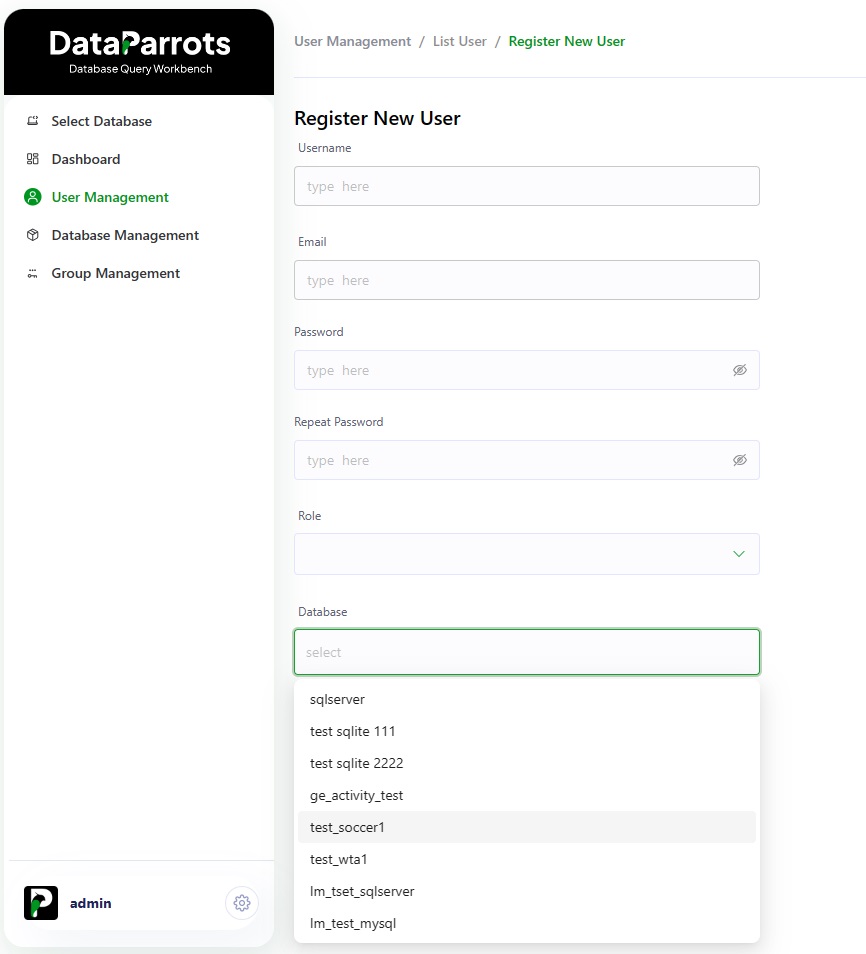
Use User Management to create internal users and assign role types such as Admin, Tech User, and User.
Role-based setup keeps advanced capabilities with technical users while enabling streamlined interfaces for business users.
- Create username, email, and strong password.
- Choose role type and assign accessible databases.
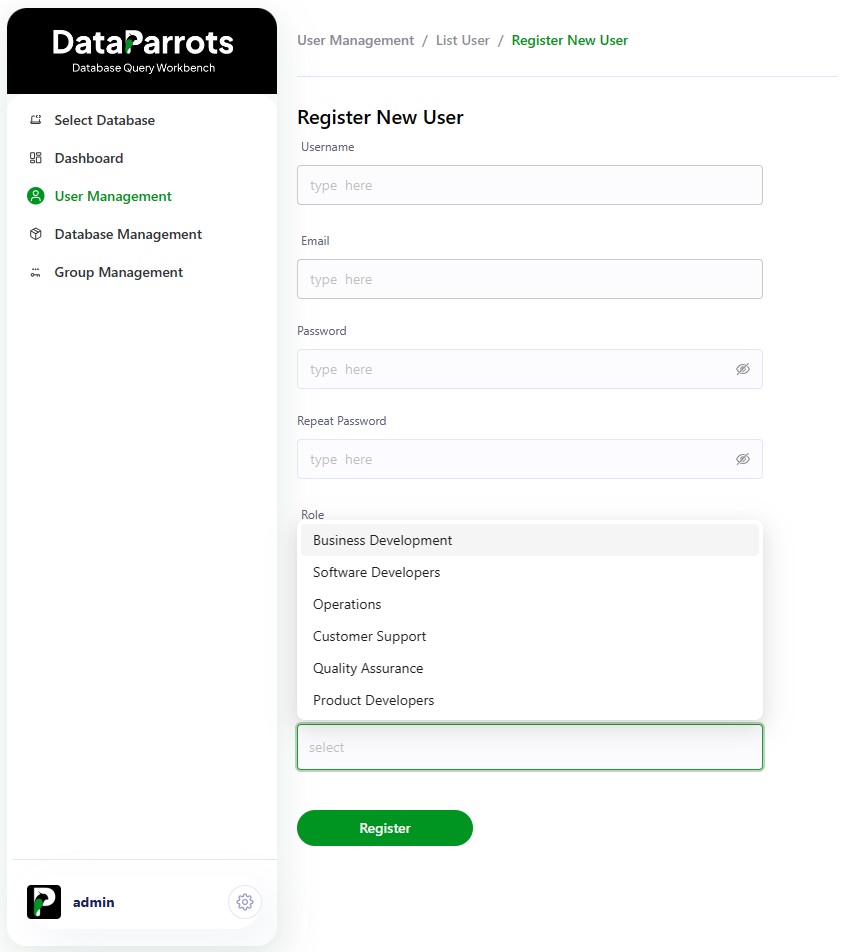
- Assign group membership for policy-level access control.
Group Management
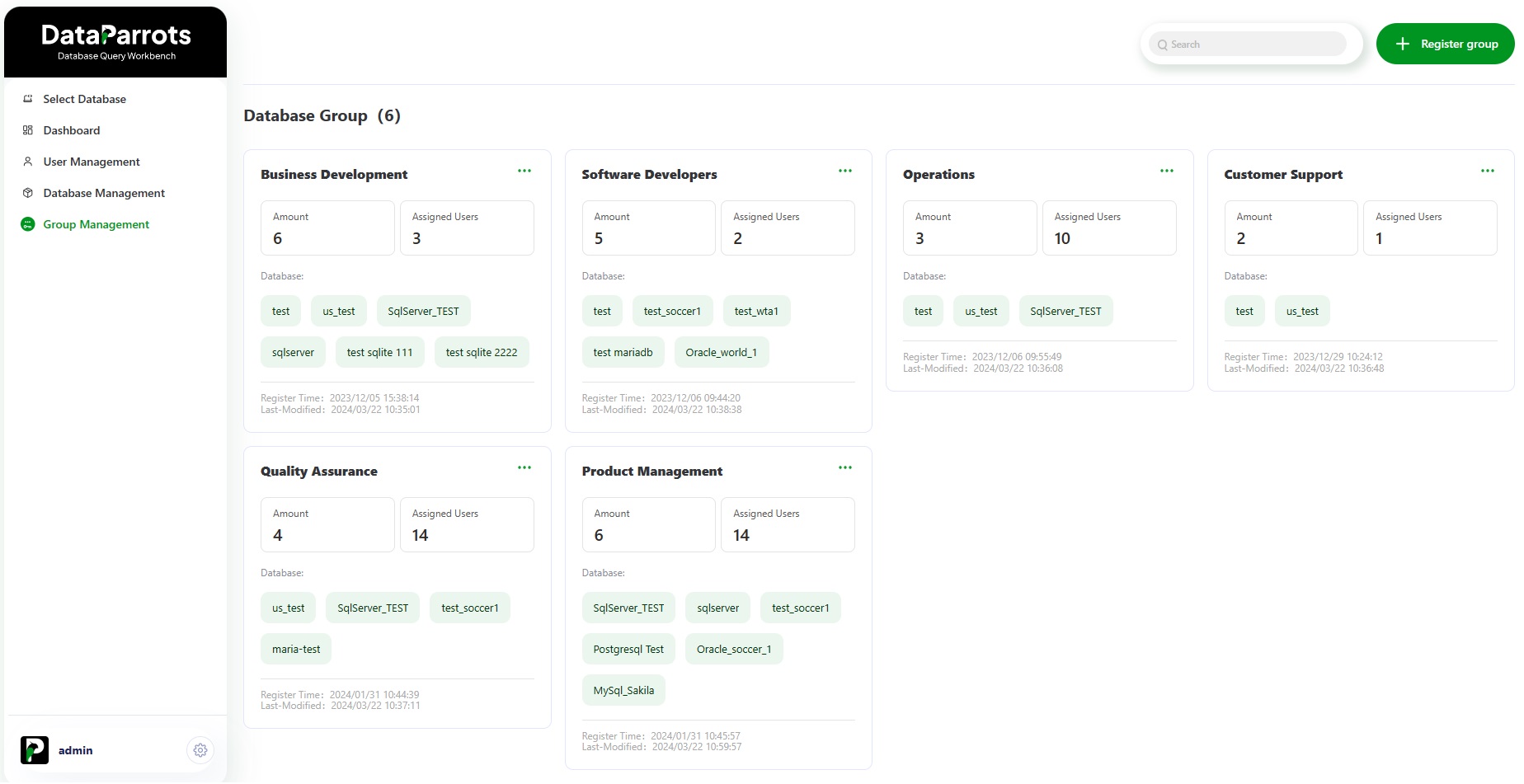
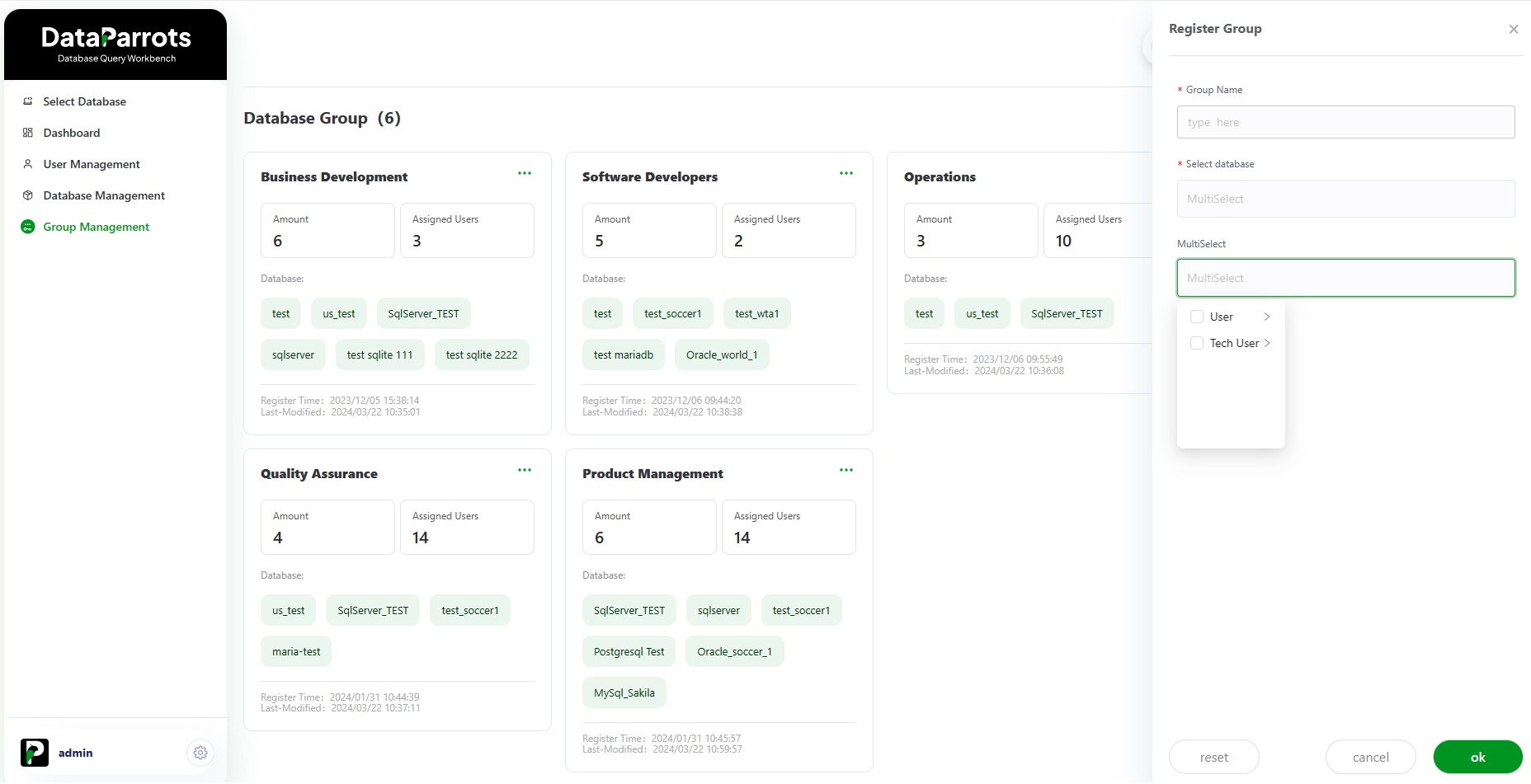
Group Management lets administrators manage authorization at group level between users and databases.
For example, create an Executives group and map selected users to approved data sources.
- Create group name by function or team.
- Bind group to one or more data sources.
- Assign eligible users and review access policy.
Technical Professionals
Technical users can generate and iterate SQL from natural-language prompts.
The technical workflow reduces manual query drafting and helps accelerate troubleshooting and optimization.
Tech User Workflow
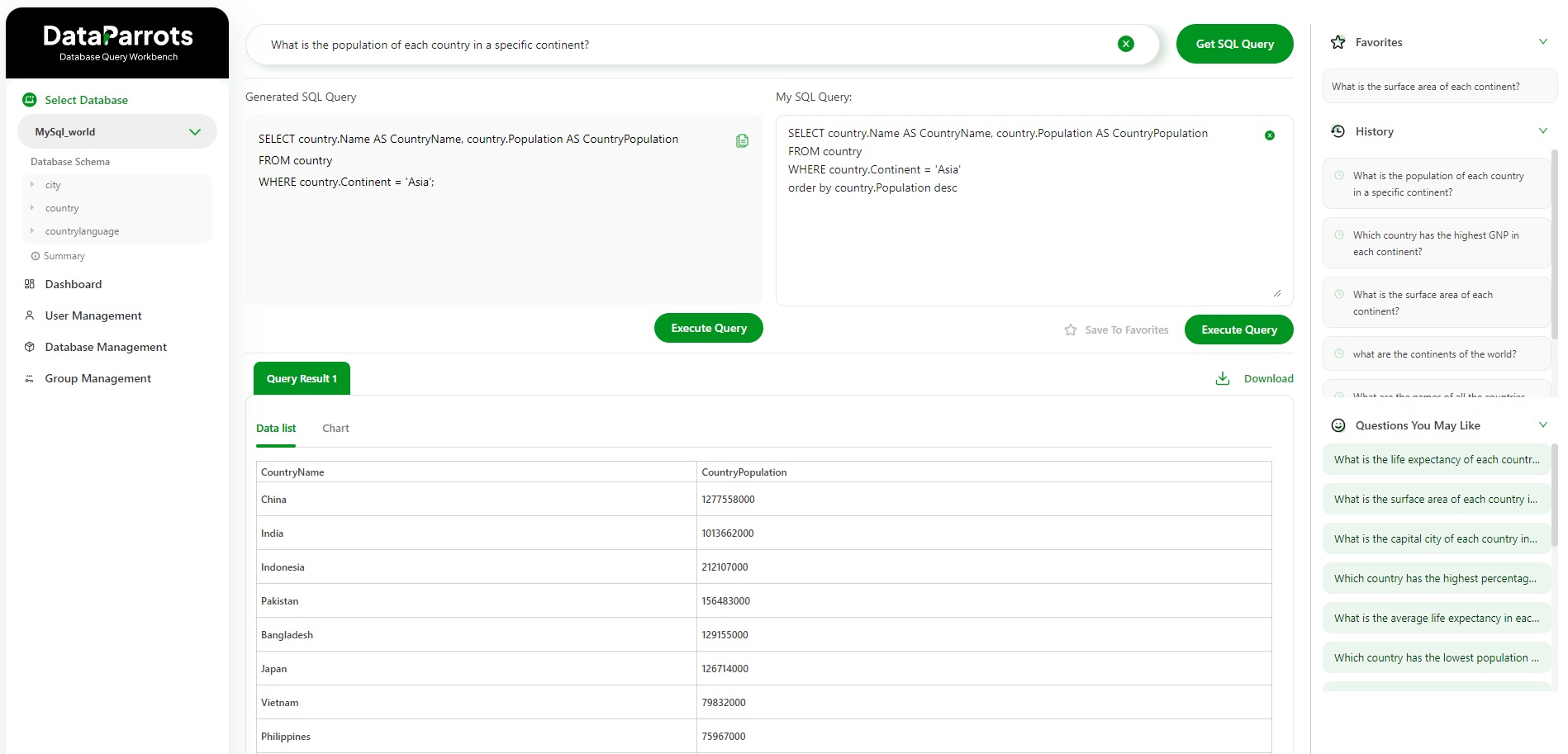
Sign in using a Tech User account provided by an administrator, then connect to the target database.
Generate complex SQL, inspect query logic, and refine results using iterative prompts and in-place editing.
Use history, bookmarks, and charting capabilities to preserve and share high-value query workflows.
- Connect to the right database profile before querying.
- Use generated SQL as a base, then optimize where needed.
- Validate outputs before sharing dashboards or reports.
Business Professionals
Business users can ask questions in plain language and receive real-time answers without waiting for custom reports.
This shortens the path from business question to informed decision.
Business User Workflow
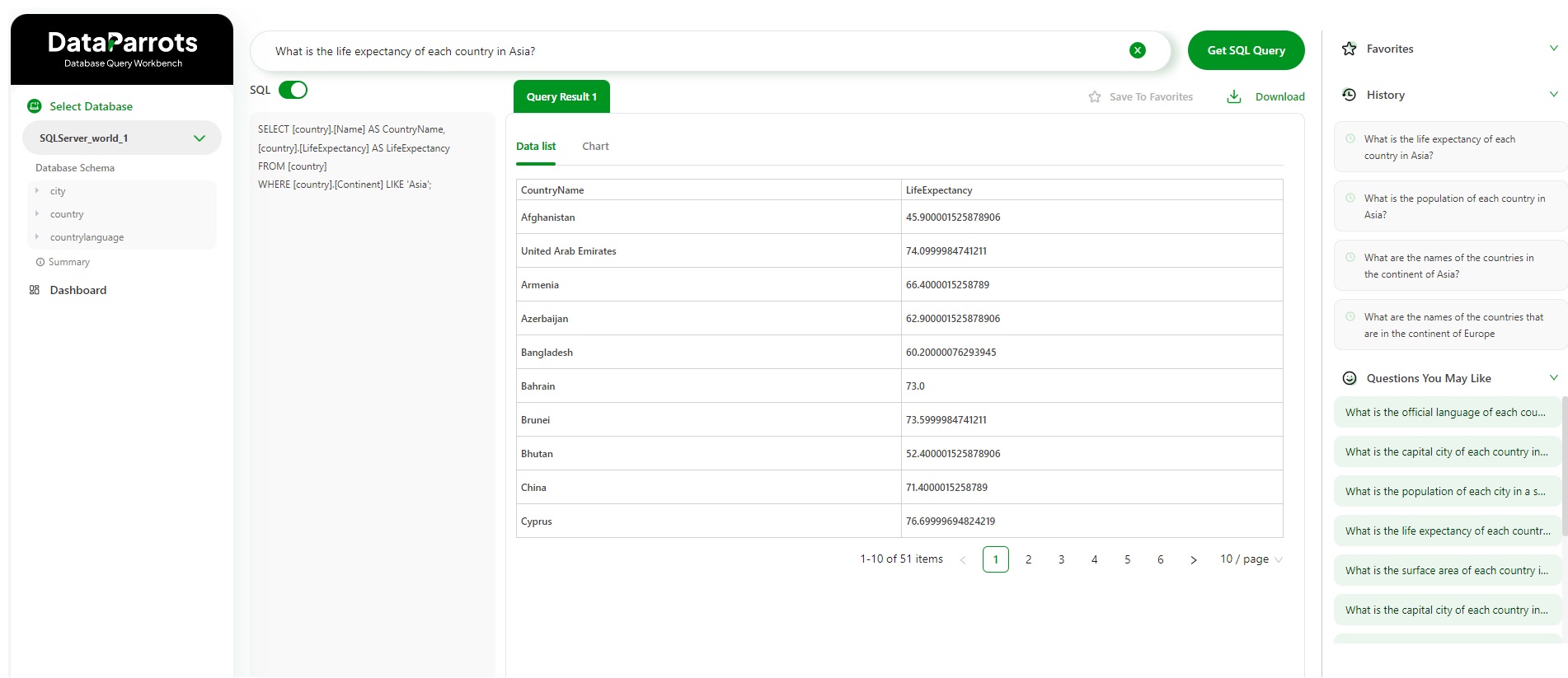
Sign in with a User account and select an authorized database.
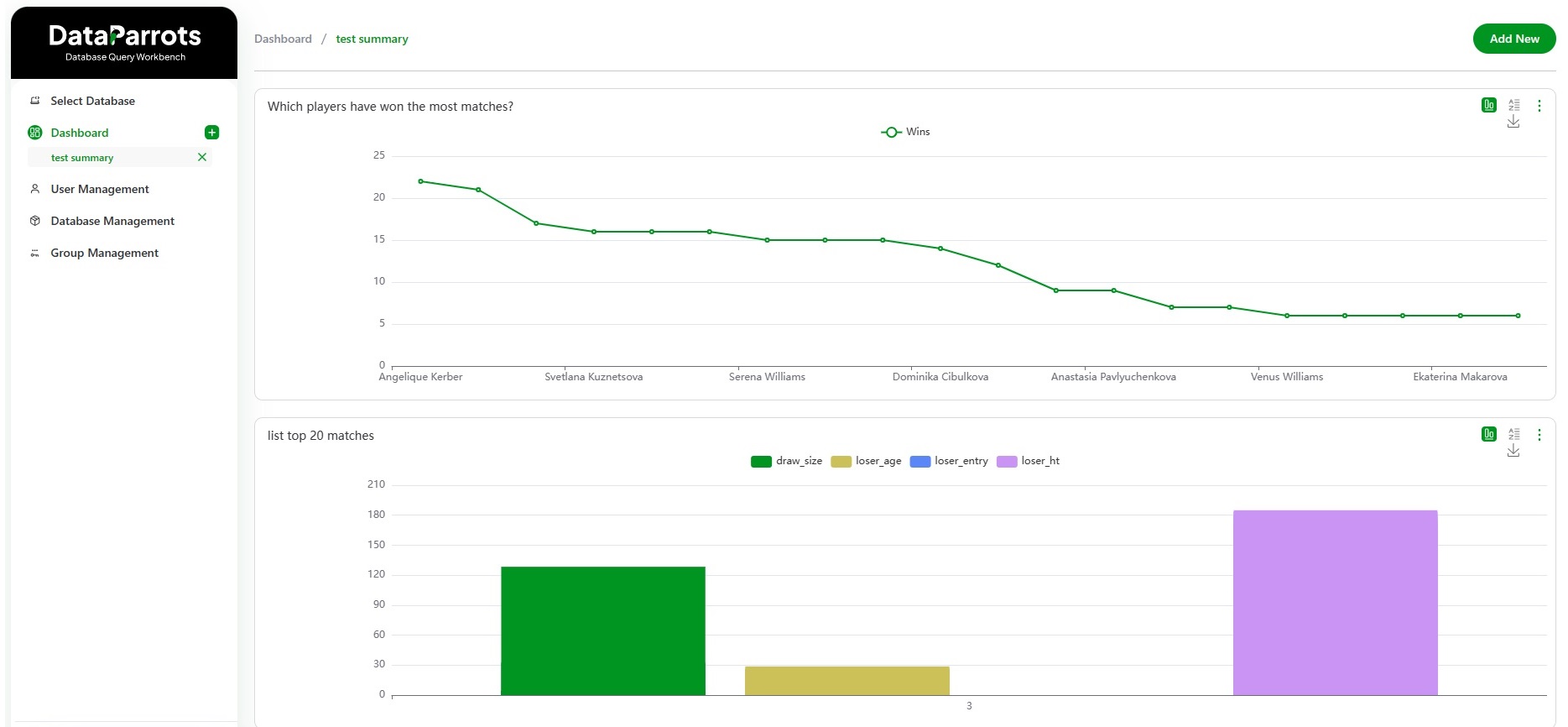
Ask questions in natural language, review answer context, and use visualizations for trend interpretation.
Build personalized dashboards to monitor recurring metrics and business KPIs.
- Use clear, context-rich questions for better results.
- Follow up with drill-down prompts to refine insights.
- Save useful views for repeat analysis.